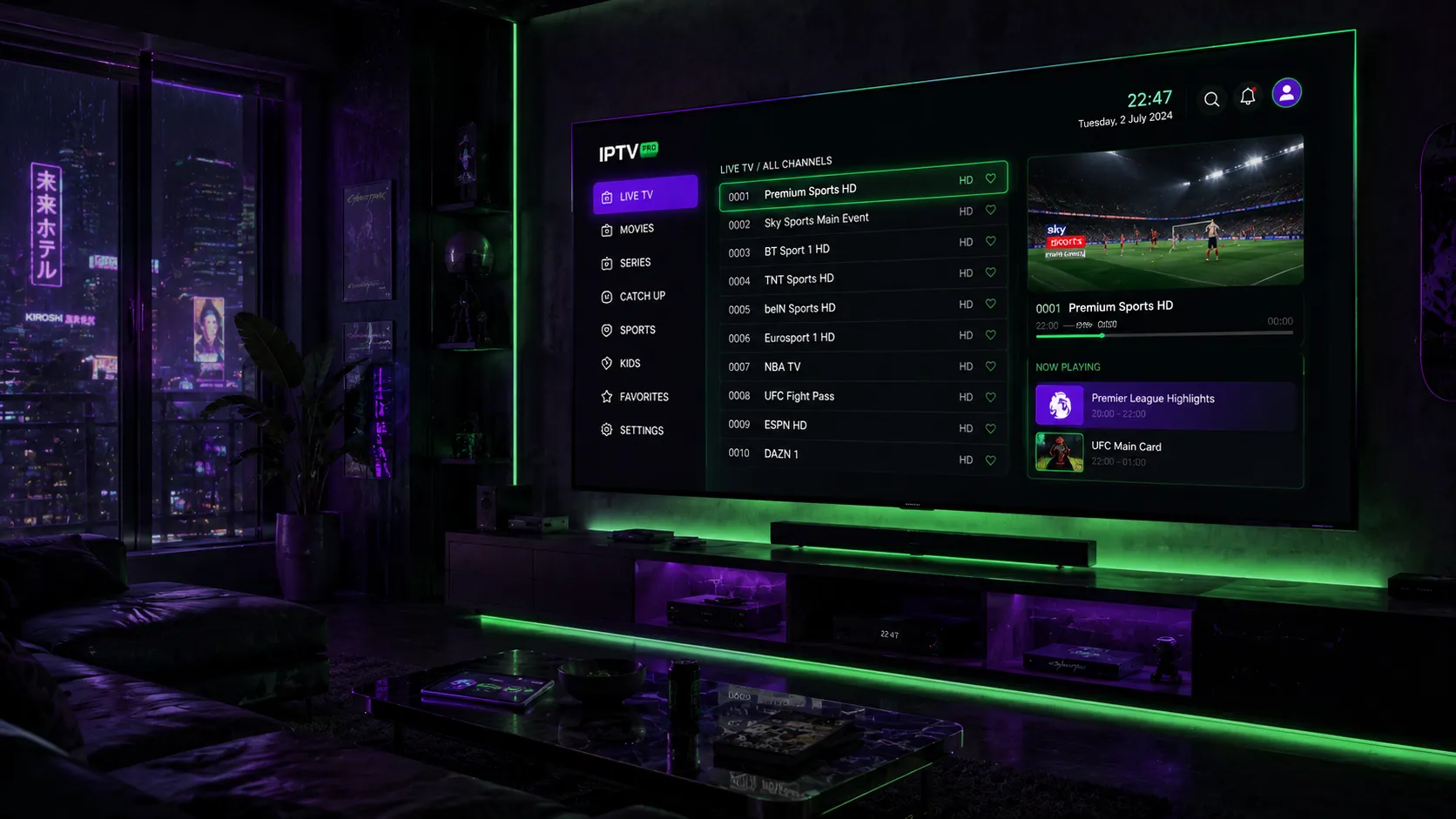
What Is an M3U Playlist?
An M3U playlist is a plain-text file that functions as a directory of media stream URLs. The name comes from "MP3 URL" — the format was originally created for audio playlists — but it has evolved into the universal standard for IPTV channel delivery. When you receive an M3U URL from your IPTV provider, that URL points to a dynamically generated text file containing every channel, stream address, category label, and optional program guide reference in your subscription.
The format is universally supported. IPTV Smarters Pro, TiVimate, GSE Smart IPTV, VLC Media Player, Kodi, and virtually every other IPTV player can parse an M3U file. This universality is one of IPTV's biggest practical advantages: you are never locked into a proprietary app ecosystem. Your M3U URL works across devices and player apps, giving you genuine flexibility.
Each channel entry in a standard M3U playlist follows a predictable structure. A directive line beginning with #EXTINF carries metadata — the channel name, logo URL, group category, and EPG channel ID. The line immediately below contains the actual stream URL. A single M3U playlist from a premium provider can contain tens of thousands of these pairs, organized into categories like US Sports, News, Entertainment, Kids, and international regions.
M3U vs. M3U8: What's the Difference?
You will frequently see both M3U and M3U8 referenced when discussing IPTV playlists. The distinction matters in practice but is simpler than it sounds. M3U is the original playlist container format. M3U8 specifies that the file uses UTF-8 character encoding and is the standard format for HLS (HTTP Live Streaming) — the protocol developed by Apple and now widely used across the streaming industry.
In practice, the vast majority of modern IPTV providers deliver M3U8 streams even when you load them via a standard M3U URL. The player app handles the distinction transparently. The IETF formally defines the HLS specification — including the M3U8 format — in RFC 8216, which is worth bookmarking if you want to understand the technical underpinnings of how adaptive bitrate IPTV streaming works.
For practical purposes: when your provider gives you an M3U URL, load it directly into your player app. The app handles the format automatically, whether the underlying streams use M3U, M3U8, or another delivery protocol like RTMP or RTSP.
How to Load an M3U Playlist Into a Player App
Loading an M3U playlist into a compatible player is straightforward on every major device. The exact steps vary slightly by app, but the core process is consistent. For a device-by-device walkthrough, see our detailed guide on how to use an M3U playlist URL. Here is the general process:
- IPTV Smarters Pro (Firestick, Android, iOS, Windows): Open the app, tap "Add New User," select "Load Your Playlist or File/URL," then paste your M3U URL in the URL field and save. Your channels load automatically.
- TiVimate (Android / Firestick): Open TiVimate, tap the "+" button, select "Add playlist," choose "M3U playlist," enter your URL, and confirm. EPG data can be added separately in Settings.
- GSE Smart IPTV (iOS / Android): Tap "Remote Playlists" in the sidebar, then the "+" button, select "Add M3U URL," paste your link, and confirm.
- VLC Media Player (Windows / Mac): Go to Media → Open Network Stream, paste your M3U URL, and click Play. VLC will load and play the first channel; navigate the playlist via the Playlist window.
- Kodi: Install the IPTV Simple Client add-on, navigate to Settings → Add-ons, configure the M3U Playlist URL field, and restart Kodi. Your channels appear in the Live TV section.
Need an M3U playlist URL?
Message us on WhatsApp — we'll get you a trial URL to test on your device right away.
Free vs. Premium M3U Playlists
Free M3U playlists are publicly available online — typically aggregated from open-source repositories or community-maintained lists. They can be a useful starting point for testing player apps and understanding the format, but they come with significant limitations that make them unsuitable as a long-term cable replacement.
What Free Playlists Offer
Freely available M3U playlists typically include a selection of public broadcast streams, international news channels, and some entertainment content. The streams are unstable by nature — sourced from community repositories that have no maintenance obligation. Links break frequently, stream quality is inconsistent, and EPG data is often absent or inaccurate. For casual experimentation, free playlists work. For replacing cable television, they do not.
Our guide to free IPTV playlists documents where to find working public M3U links for 2026 and how to filter for the most reliable streams within that category.
What Premium Playlists Deliver
A premium M3U playlist from a paid IPTV provider is a different product entirely. Streams are hosted on dedicated infrastructure with server redundancy. Channel lists are actively maintained — broken streams are replaced, new channels are added, and EPG data is kept current. Premium playlists typically include US network broadcasts, major sports packages, international channels in dozens of languages, and a large VOD library — all delivered at consistent HD or 4K quality.

| Feature | Free M3U Playlists | Premium M3U Playlists |
|---|---|---|
| Uptime | Inconsistent | Reliable |
| Channel Count | 100–2,000 (many broken) | 5,000–30,000+ (maintained) |
| EPG / Program Guide | Rarely included | Full EPG data included |
| Stream Quality | SD to HD (inconsistent) | HD standard, 4K tiers |
| US Sports Channels | Very limited | Comprehensive coverage |
| VOD Content | Not available | 10,000+ titles typically |
| Cost | Free | $10–$25/month |
| Support | None | Provider support included |
EPG Data and Why It Matters
EPG stands for Electronic Program Guide — the schedule data that tells your player app what is currently airing on each channel and what is coming up. A working EPG transforms the IPTV experience from a raw list of streams into something that feels like television: you can see show titles, episode descriptions, and scheduling information laid out in a familiar grid format, just like the program guide on cable TV.
Premium M3U playlists include an EPG URL alongside the channel list. This is typically an XMLTV-formatted file that your player app fetches periodically to keep schedule data current. When configuring a new playlist in TiVimate or IPTV Smarters Pro, you can enter the EPG URL in the corresponding settings field. Most premium providers supply this URL alongside your M3U link. If your provider does not include an EPG URL, third-party sources like community XMLTV repositories can sometimes fill the gap, though their accuracy varies.
What Makes a Playlist URL Stable?
The stability of an M3U playlist depends almost entirely on the infrastructure behind it. A playlist URL itself is simply an address — the quality of the streams it references is determined by the provider's server capacity, maintenance practices, and CDN (Content Delivery Network) configuration.
Stable premium playlists share several characteristics: streams are hosted on multiple redundant servers so that one node going down does not kill the channel; the provider actively monitors stream health and replaces broken links; the playlist URL itself is periodically refreshed to remove dead entries; and the provider uses geographically distributed servers that reduce latency for US-based viewers. When evaluating a provider, these infrastructure factors are more predictive of long-term satisfaction than channel count alone.
Using M3U Playlists With IPTV Apps
The beauty of the M3U format is its cross-compatibility. The same playlist URL typically works across all major IPTV player apps. This means you can start watching on your Firestick using IPTV Smarters Pro, switch to TiVimate for its superior EPG grid view, and also load the same URL into VLC on your laptop — all without your provider needing to do anything differently.
For a full review of which player apps handle M3U playlists best on each device, see our IPTV apps and players guide. For Firestick users specifically, our IPTV for Firestick guide covers the specific installation and configuration steps for each recommended app in detail.
If you are using a dedicated IPTV set-top box — a MAG box, Formuler, or an Android TV box — these devices also accept M3U URLs through their built-in portal applications. Our IPTV boxes guide covers which hardware options make it easiest to get started with a playlist URL.
Pro Tip: Bookmark Your M3U URL
Your provider may occasionally update the M3U URL when they migrate servers or refresh their infrastructure. Keep a note of the URL and your provider's contact details (WhatsApp or email) so you can quickly request an updated link if your playlist stops loading after a provider-side change.
Frequently Asked Questions
An M3U playlist is a plain text file containing a structured list of media stream URLs. When loaded into a compatible IPTV player app, it provides a full channel guide including live streams, VOD content, and optional EPG schedule data. The M3U format is universally supported across virtually all IPTV player apps and devices.
M3U is the original playlist format. M3U8 specifies UTF-8 encoding and is the standard for HLS (HTTP Live Streaming) streams. Most modern IPTV providers use M3U8 streams internally even when you load them via a standard M3U URL. Your player app handles the distinction transparently — in practice, you simply paste your URL and the app manages the rest.
In most cases yes — your M3U URL can be loaded into multiple player apps across different devices. However, your IPTV subscription plan limits the number of simultaneous streams. If you exceed your plan's concurrent connection limit, additional devices will be refused or will buffer. Check your plan's connection allowance before setting up on several devices at once.
Common causes include: the URL has been updated by your provider (request the latest URL via WhatsApp); your subscription has expired; the player app you are using has a URL input error (check for accidental spaces or line breaks when pasting); or your internet connection is interrupting the download of the playlist file. Try copying and re-pasting the URL carefully, and check your connection speed before contacting your provider.